USB-QC30R2 programming cable driver

USB-QC30R2 programming cable driver installation instructions

usb qc30r2 driver download

Overview

The USB programming cable communicates with the Q-series PLC via the USB-QC30R2 programming cable by emulating the computer’s USB port into a traditional serial port (usually COM3).

Features

● Supported operating systems Windows XP/ Windows2000

● Compatible with USB V1.1 V2.0

● Baud rate: 300bps ~ 1Mbps automatic adaptation

● Only one USB programming cable is supported per PC

System Requirements

Please make sure your computer is IBM PC compatible and has the following minimum system requirements before using the USB programming cable:
● Intel compatible with 586DX4-100MHz CPU or higher

● A standard USB interface (4-pin A-type socket)

Driver installation

The installation of the driver is very simple, just follow the prompts. Take Windows XP as an example, follow these steps:

1. Open the computer and insert the driver CD.

2. Plug the USB-QC30R2 cable into the computer’s USB port. Windows will detect the device and run the Add New Hardware Wizard to help you set up the new device and click Next to continue.

If Windows does not prompt for new hardware, in the Device Manager’s Hardware list, expand Universal Serial Bus Controller, select the USB device with the question mark, right-click and run the update driver.

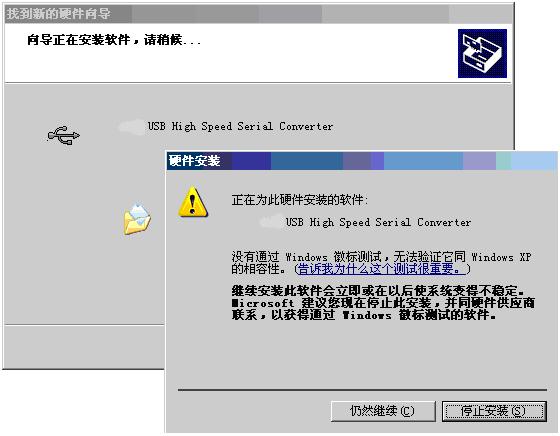
3, Windows will detect the installation information, and the following does not pass the USB-QC30R2 driver installation instructions _ library download https://www.wenkuxiazai.com/doc/1ad4d6a8aaea998fcc220e97.html Windows logo test information box, click “still continue “.

4. Continue the installation and let Windows copy the driver files to your hard drive.

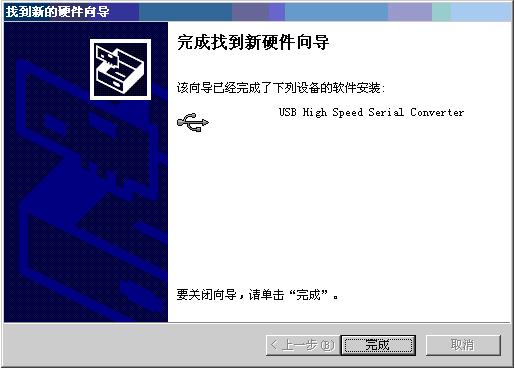
5. When Windows displays the Found New Hardware Wizard, click Finish to complete the installation.

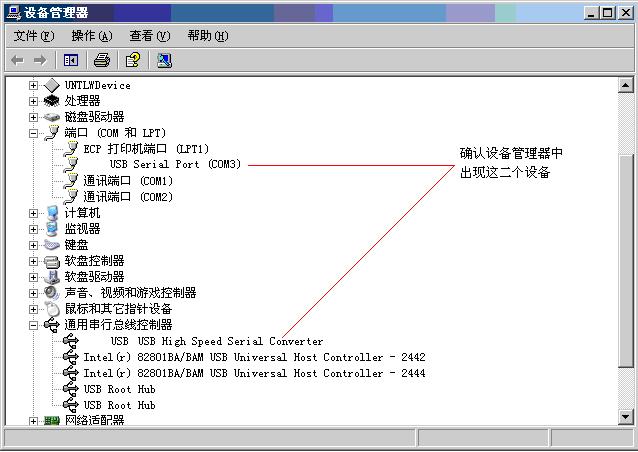
6. After the installation is complete, please confirm that “Prolific USB-to-Serial Comm” appears in the “Port\(COM and LPT)”\Expand entry in the “Start\Control Panel\System\Hardware\Device Manager” menu of Windows. COMx)”, this COMx is the COM port number used by the USB programming cable. The port number is related to the computer. It is usually COM3 or COM4. The COM port will appear when you insert the programming cable every time you use it. You only need to use the programming software or The COM port number can be selected by selecting the application software such as communication software.

Driver removal

The driver is deleted to release the COM port resources for use by other devices, or to remove the driver and then reinstall it. Follow the steps below to remove the driver:

1. Unplug the USB programming cable from your computer.

2. Run the DRemover98_2k.exe program under the driver CD.

3. Display the prompt window and click the “OK” button.

Mitsubishi usb sc09 fx driver

The Mitsubishi usb sc09 fx driver is a driver for the USB programming cable. This driver is only suitable for 2000/xp operating systems. If you are not familiar with the installation driver, then the small series will write the detailed installation steps in the form of graphic, please read it carefully.
Driver installation steps (take xp as an example):
1. Turn on the computer that will connect the USB programming cable and make sure the USB port of the computer is up and working.
2. Insert the USB programming cable into the computer’s USB port. Windows will detect the device and run the Add New Hardware Wizard to help you set up the new device. Insert the driver CD and click Next to continue (as shown below).
usb sc09 fx driver download

201304171123239581
If Windows does not prompt for new hardware, in the Device Manager’s Hardware list, expand Universal Serial Bus Controller, select the USB device with the question mark, right-click and run the update driver.
3. Windows will detect the installation information, display the “USB High Speed ​​Serial Converter” device, and the following message box does not pass the Windows logo test. Click “Continue Anyway”.

201304171125022759

4. Continue to install and let Windows copy the driver files to your hard drive.

201304171126224243

5. When Windows displays the Found New Hardware Wizard, click Finish to complete the installation.

201304171127283723

6. After the installation is complete, please confirm that “USB Serial Port (COMx)” appears in the “Port (COM and LPT)” expansion item in the “Start\Settings\Control Panel\System\Hardware\Device Manager” menu of Windows. This COMx is the COM port number used by the USB programming cable. In the future, the COM port will appear whenever you insert the programming cable. You only need to select the COM port in the application software such as programming software or communication software.

20130417112820260

Mitsubishi usb sc09 fx use notes:
1. If the USB programming cable plugged into the computer is not detected when the computer is turned on (the COM port corresponding to the cable does not appear in the Windows device manager) or other abnormal conditions occur, please re-plug the USB plug once.
2, USB to UART is a plug-and-play USB device, it can not be disconnected during data transmission (disconnect means to pull out the USB cable from the USB socket), that is, must be closed in the application After the serial port, you can unplug the cable from the USB socket.
3. Sometimes the USB communication error occurs when the Windows system is faulty or the USB cable is plugged in during communication. At this time, it may be necessary to restart the computer and the PLC.
4. Generally speaking, it is best to insert the USB cable into the USB socket first. After the computer detects the COM port, insert the other end of the programming cable into the PLC communication port. Because some PLCs work in the master station mode, the communication port is always in the communication port. Sending data to me continuously, such as plugging the cable into the port of the PLC first will reduce the speed at which the computer correctly recognizes the COM port.

How does the computer communicate with Mitsubishi Q series PLC?

Mitsubishi Q series PLC communication parameter settings:

Check digit: odd parity, data bit: 8, stop bit: 1.

Set the communication parameters of the COM port of the computer to the communication parameters of the PLC. Then open the PLC programming software, just click on the connection to PLC.
If it is Q02H series, you can also use the normal USB interface printer line connection programming.
The difference with the A series PLC is: select the transparent mode in the dialog box that appears when connecting the A series PLC.
The Q series does do not seem at all.